
How to listen to Zotero PDFs on your iPhone.
Bring PDFs from your personal or group Zotero library into Earlo, then listen offline with the original paper close by.
of your next read.
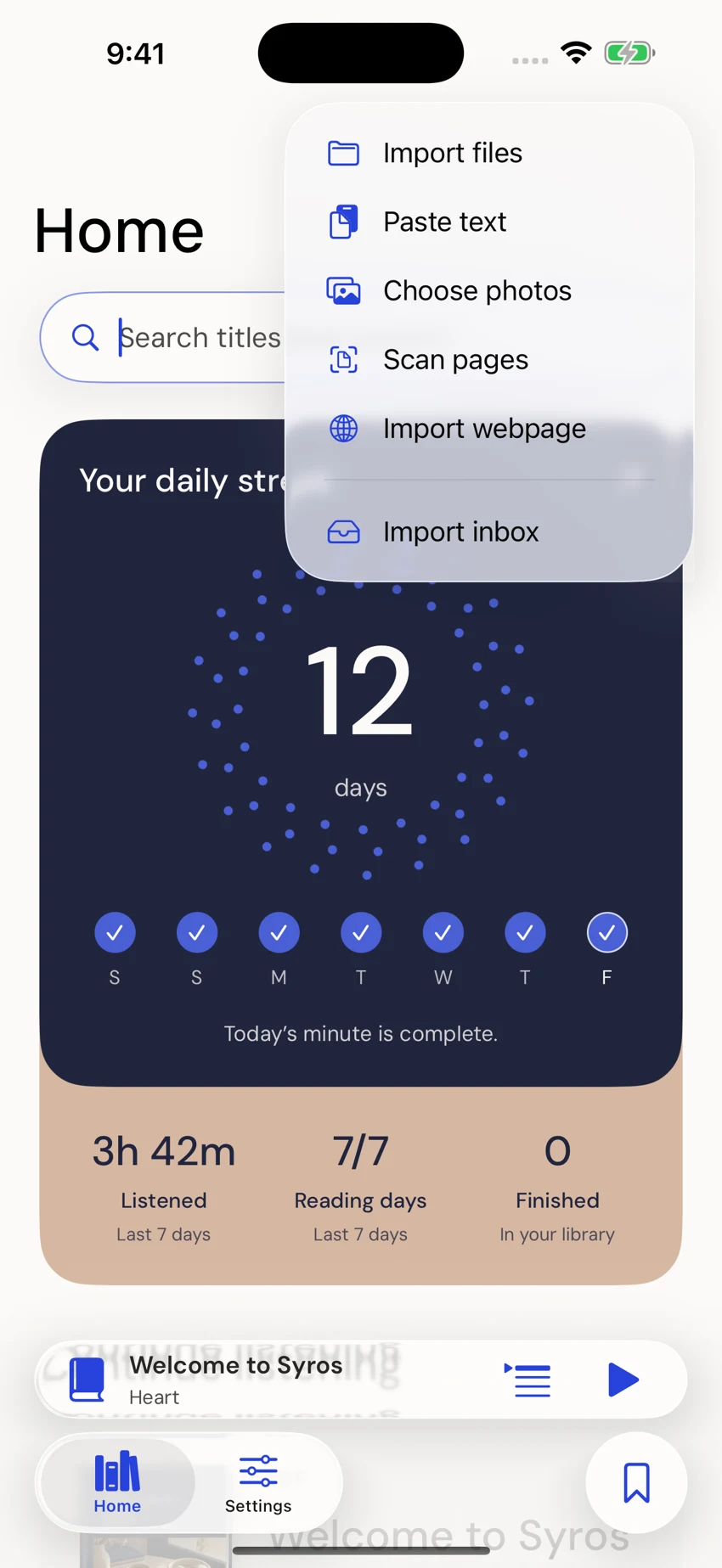
Earlo interface shown with sample content.
Before you connect.
You need a Zotero library with PDF attachments you can access, an internet connection for browsing and importing, and Earlo on your iPhone or iPad. A bibliographic entry alone is not the full paper: check that the item has an accessible PDF attachment.
Earlo imports selected papers into its own reading library. The connection is read-only and on demand, so you choose what to bring across. It does not mirror every change in Zotero or send Earlo annotations back to it.
1. Connect the library you use.
Open the Zotero connection in Earlo’s Settings and enter the connection details for your library. Your credentials are stored in the device’s Keychain. Use access permissions that cover the library and PDF attachments you intend to read.
Both personal and group libraries are supported. Group access depends on your Zotero account and the group’s permissions. If the library you expect is unavailable, check those permissions before trying the import again.
2. Choose a collection and its papers.
Browse or search your Zotero collections, then select the PDF attachments you want to import. Start with one paper to check the connection and reading result before adding a larger set.
Wait for the document to finish importing. If a paper has no available attachment, obtain a PDF you have access to and add it through Files instead. Earlo does not bypass publisher access controls.
3. Listen and follow the original.
Open the imported paper and choose a voice. Use the section navigation to find your starting point, then follow the spoken text with read-along highlighting. Switch to the original PDF whenever a figure or table needs your attention.
Research narration skips recognized inline citations and reference lists by default. The visible source is preserved, and those passages can be restored through the research controls. Scientific speech handling is English-first; complex equations and unusual layouts can still need review.
4. Keep the useful parts.
Add a note or bookmark to a passage, group related papers in Earlo collections, and add whole documents to your listening queue. Once the files are imported, saved reading and on-device narration work offline.
Export notes as Markdown and citations as RIS or BibTeX for the next part of your workflow. These are explicit exports, not a two-way Zotero annotation sync. You decide where the exported files go.
If something does not import.
Check your network connection, library permissions and whether the item has a PDF attachment. A record that opens in Zotero can still have a file that is unavailable to the connection. Use the original source or your own local PDF when necessary.
Disconnecting Zotero in Earlo leaves already imported papers in your local library. If you want to revoke a user-created Zotero key itself, do that in Zotero’s account settings. A downloaded paper and an active library connection are separate things.